Table of Contents
Like this post? Pin it!
So you're thinking about a premium Squarespace template. Maybe you've been eyeing one of ours for a while. Maybe you just stumbled in from a search engine. Either way, you've probably got questions:
Is a paid template actually worth it, or should I just use a free one?
What does customizing a template and launching my site actually involve?
What else am I going to have to buy?
All fair questions. This post answers them (and a few more).
A Premium Squarespace Template Is Right for You If…
You want a more guided experience than a free template provides. Squarespace's free templates are pretty, but they're a blank slate. You get a design and not much else. Our templates come with a course, workbooks, and a structure built specifically for coaches, consultants, and speakers — so you're not left guessing what goes where.
You're comfortable DIYing, as long as you've got guidance. You don't need to be a web designer. You just need to be willing to follow along.
You want to ask questions to an actual human expert. Every template kit comes with 60 days of support. If you get stuck, you can open a ticket and get help from a real person (hi, it's me).
You want your site live soon. No back-and-forth with a designer. No waiting on someone else's calendar. Most folks can get from purchase to launch in a long weekend, or spread it across a week or two.
You're working with a budget. A custom website from a designer can run thousands (sometimes tens of thousands) of dollars. A template kit gets you a professional, conversion-focused site for a fraction of that.
You want a site built on a proven structure. Every template follows the Launch Framework, the same approach I've used for years with coaches, consultants, and speakers. The pages, sections, and calls-to-action are already where they need to be. You just make them yours.
You want to be able to update your own site. Once you've built it yourself, you know how it works. New offer? New testimonial? You can add it in minutes instead of emailing a designer and waiting.
A Premium Squarespace Template Isn't Right for You If…
You want your site done entirely for you. Totally valid! Some people would rather hand the whole thing off, and that's what our Website Intensives are for.
You need a one-of-a-kind custom design. Our templates are fully customizable (colors, fonts, images, copy), but you're starting from a proven layout, not a blank canvas.
You're committed to a platform other than Squarespace. Our templates are built on Squarespace 7.1. If you're set on WordPress or Wix, these aren't for you.
You can't carve out any time right now. The course itself is about two hours (roughly two episodes of whatever show you're binging), and building the site takes a few focused days. If your calendar is genuinely full for the foreseeable future, it may be worth waiting — or, again, looking at a done-for-you option.
What Happens After You Buy a Template?
Here's the whole journey, from checkout to launch, in three phases: prep, build, and launch.
You don't have to follow it in perfect order. Some people watch the whole course first and then build; others build as they go, one lesson at a time. And if you're already comfortable in Squarespace or have your brand figured out, skip what you don't need.
Phase 1: Prep
Step 1: Get immediate access to the course and tools
As soon as you purchase, you'll get access to the course. Each lesson has a short video, with key takeaways, resource links, and a full transcript underneath (great if you'd rather skim than watch).
You'll also get the kit's resources:
The Brand Identity Workbook to get clear on your audience, offers, and messaging
The Copy Writing Guide, with fill-in-the-blank prompts and examples for each section of your site
The Complete Guide to Fonts, covering font pairings available in Squarespace and Canva
A color palette picker (in Canva) to pull brand colors from your photos
The Support Hub, which links to all of the above, plus Squarespace's help center and forums, FAQs, and the form to open a support ticket with me
Step 2: Do your creative prep work
Before you touch Squarespace, you'll gather everything your site needs. I know, you want to get to the fun part. But this is what makes the fun part go fast. (It's also what most people skip when they DIY without guidance, which is why so many DIY sites feel… off.)
Clarify your brand. The Brand Identity Workbook walks you through who your audience is, what you offer them, and how you talk about it. Then pick a font pairing from the Guide to Fonts: one font for headings (this one can have some personality) and one for body text (this one needs to be easy to read).
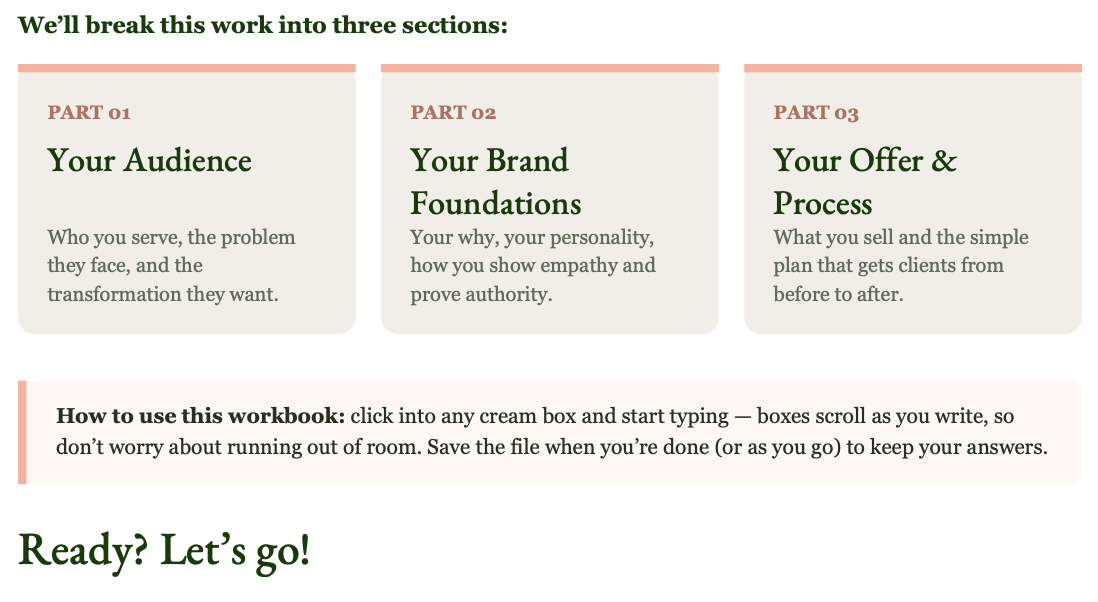
Our Brand Identity Workbook makes clarifying your brand easy.
Gather your images. Photos of you are ideal — people want to work with people they can see. For everything else, Squarespace's built-in stock library, Unsplash, and Pexels all have great free options. I recommend collecting 40 to 60 images before you start, so you're not stopping mid-build to go photo hunting.
Choose your colors. Squarespace uses a five-color palette. I recommend two light colors, two dark colors, and one bright color for buttons and anything you want to draw the eye. Not sure where to start? Drag a few of your photos into the color palette picker and use Canva's eyedropper to pull colors straight from them. That way everything on your site feels like it belongs together.
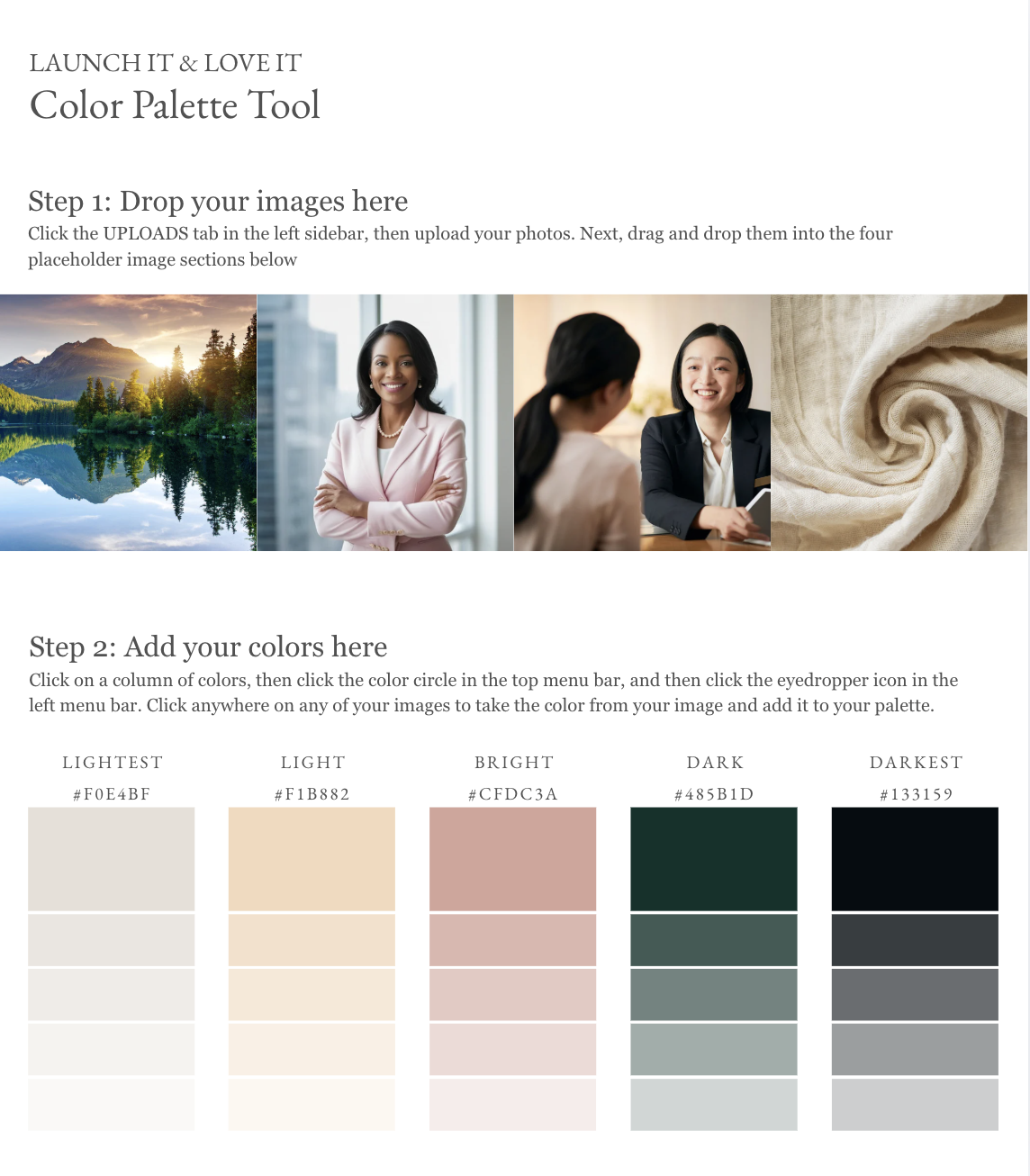
Launch It & Love It’s Color Palette Tool makes it easy to pick your colors from your images.
Write your copy. The Copy Writing Guide is organized into building blocks that match the sections on your site: your hero section, outcomes, offers, bio, process, testimonials, and calls-to-action. Each one has prompts and examples, so you're never staring at a blank page. As you write, keep it short (people scan websites), keep it relevant (write about your audience, not how great you are), and keep it sounding like you.
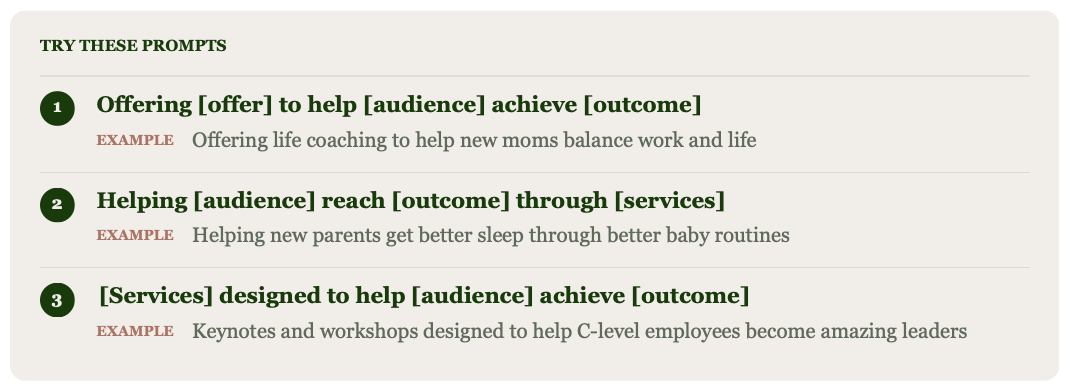
Our Copy Writing Guide includes fill-in-the-blank prompts and examples for virtually every piece of copy on your website.
Step 3: Accept your template invite
Within one business day of purchase, you'll get an email titled "Contributor Invitation from Launch It & Love It." Click Accept Invitation, log into Squarespace (or create a free account), and your new site is ready and waiting.
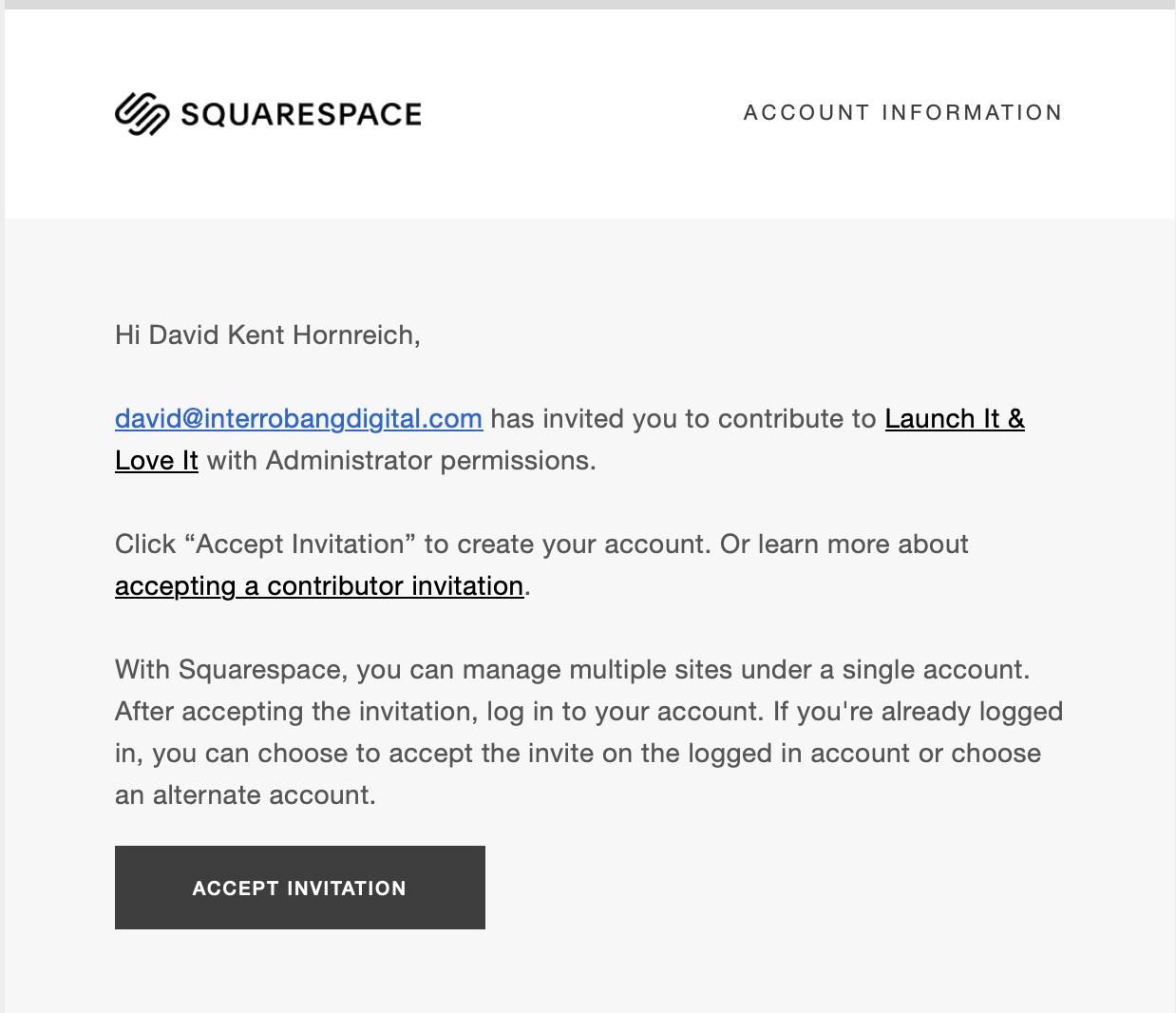
Your invitation email will look just like this.
Phase 2: Build
Step 4: Get comfortable in Squarespace
If you've never used Squarespace before, the course gets you oriented. The short version:
Every page is a stack of sections, and every section is made up of blocks: text, buttons, images, forms. (If you've read my Launch Framework Handbook, this'll feel familiar.)
Fluid Engine is Squarespace's drag-and-drop editor. You move blocks around on a grid, layer them, and duplicate them with a click.
Mobile view lets you rearrange things for phones without changing your desktop layout. Worth a few minutes of attention, since a lot of your visitors will be on their phones.
Already a Squarespace pro? Skip ahead.
Step 5: Arrange your pages and menu
Your template comes with more pages than you might need. That's on purpose: it's easier to turn something off than to build it from scratch.
In the Pages panel, disable any pages you don't need (they're tucked away, not deleted, so you can turn them back on later). Then drag your remaining pages into the order you want them in your menu.
Step 6: Make it look like you
This is where the template stops looking like a template.
Add your site title or logo, plus a favicon (the tiny icon in the browser tab). Don't have a logo? Don't sweat it. Especially for personal brands, a clean site title works beautifully.
Add your colors in Site Styles. Enter your exact colors, or upload an image and let Squarespace pull colors from it. Each section also has its own color theme, which is how you get that nice rhythm of light and dark sections as people scroll.
Add your fonts, also in Site Styles. Choose your pairing, then use the size sliders to scale your text up or down.
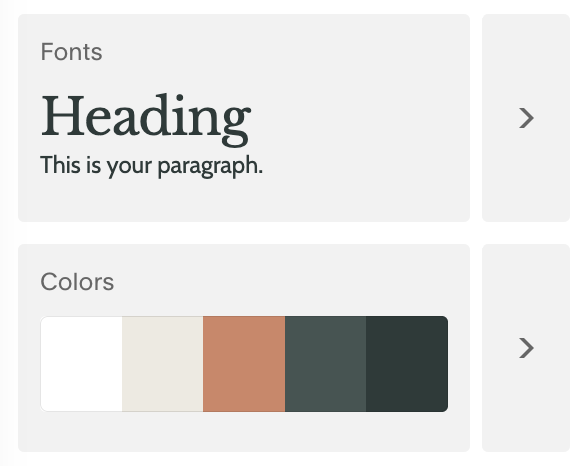
Fonts and colors can be easily managed in the Site Styles menu.
Step 7: Add your copy and images
Go page by page, section by section. Use the Copy Writing Guide to write effective copy easily, and update your buttons so each one says the right thing and links somewhere useful.
Then swap in your images. You can upload them all to your asset library at once or replace them one at a time as you go. A few tools worth knowing:
Focal Point keeps the important part of an image visible when it's cropped (so your face doesn't get chopped off on mobile)
Shapes turn images into arches, circles, and more
Overlay Opacity darkens background images so text on top stays readable
Step 8: Connect your forms and social accounts
Your template includes forms for things like newsletter signups and lead magnet downloads. A form that doesn't send anywhere isn't doing much, so let's connect them.
Each newsletter block lets you choose where email addresses go — Squarespace Email Campaigns, Mailchimp, Google Drive, and more — and where people land after they submit. (I recommend a thank you page with a next step, rather than just a confirmation message.) Using a different email tool? You can swap in your tool's embed code instead.
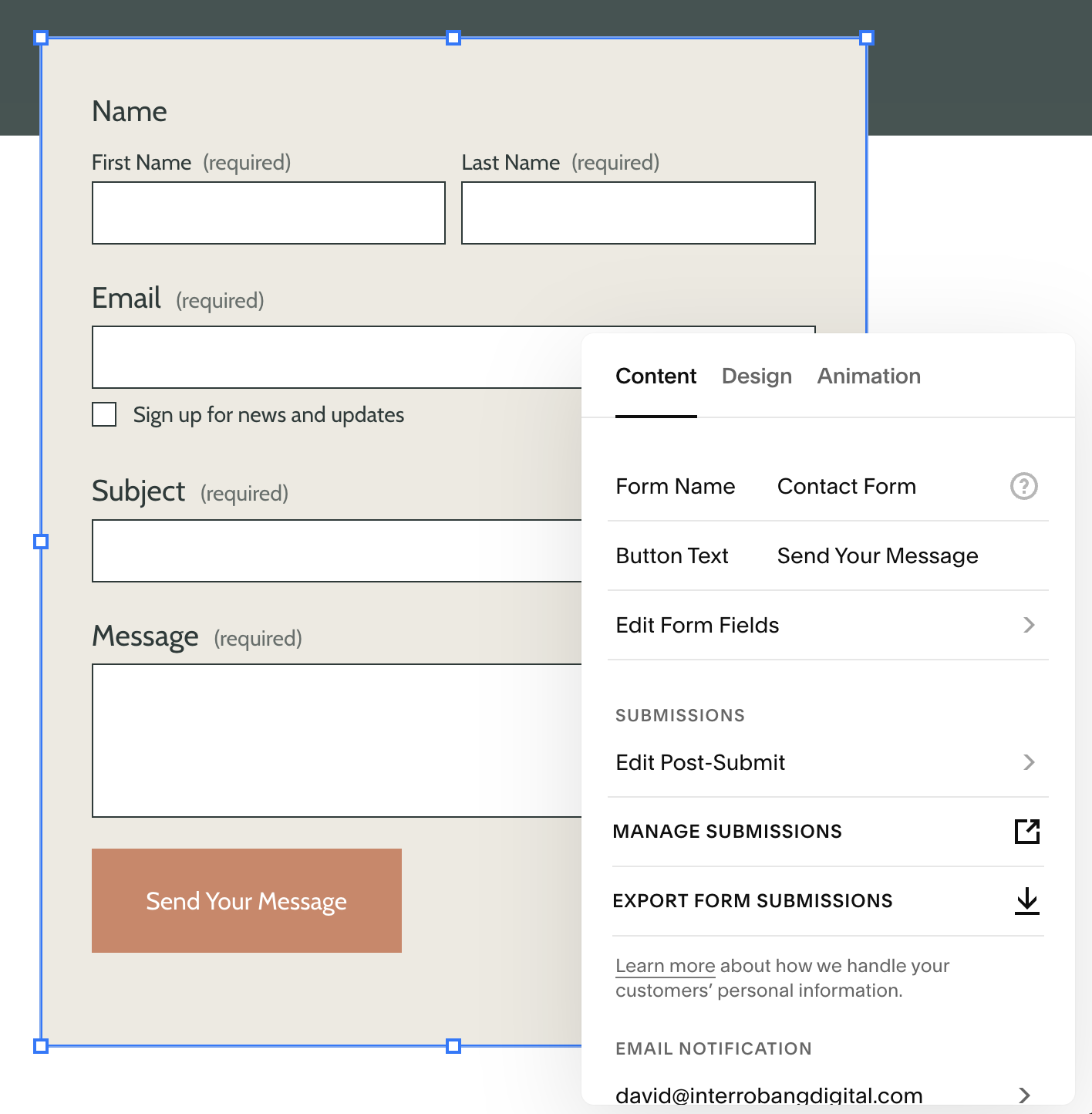
Forms can easily be connected to your email address and email marketing software. For third party tools, a connector like Zapier may be required.
Then link up your social accounts so visitors can find you everywhere else.
Phase 3: Launch
Step 9: Optimize your SEO
Before you launch, spend a few minutes helping search engines (and the humans using them) understand each page. In each page's settings, you can set the title and description that show up in search results, plus a clean URL (yoursite.com/coaching beats yoursite.com/page-2-copy). You don't need to become an SEO expert. Just make sure each page clearly says what it is and who it's for.
Squarespace’s built in SEO tools make it easy to add image alt text and meta descriptions to every page on your site.
Step 10: Choose your plan, connect your domain, and go live
Three things stand between you and a live website.
Pick a Squarespace plan. You can customize your template for free during your trial, but you'll need a paid plan to publish. You’ll want Squarespace’s “Core” plan 99% of the time. If you can swing annual billing, do it: it's cheaper, and it may make you eligible for a free domain for your first year.

The Squarespace Core plan is the right choice in 99% of cases.
Connect your domain. You've got three options:
Buy a new domain through Squarespace. Search, pick, check out. Afterward, watch your inbox for a verification email and click the link — if you don't verify within 15 days, your domain gets suspended.
Connect a domain you already own. If it's with GoDaddy, Namecheap, or Network Solutions, Squarespace has a simpler connection process. For other providers, you'll copy a few DNS records from Squarespace into your domain provider's settings. It's mostly copy-and-paste, but don't delete your MX records (those keep your email working), and give it 24 to 48 hours to fully connect.
Transfer your domain to Squarespace, so your site and domain live in one account. Squarespace actually recommends this over connecting, if your domain is eligible.
Hit publish. Visit your site, click around, test your forms, check it on your phone, and then go tell people about it.
That's it. You've launched! 🚀
And through all of it: 60 days of support
If you get stuck anywhere along the way, open a support ticket from the Support Hub and I'll help you sort it out. You're not doing this alone.
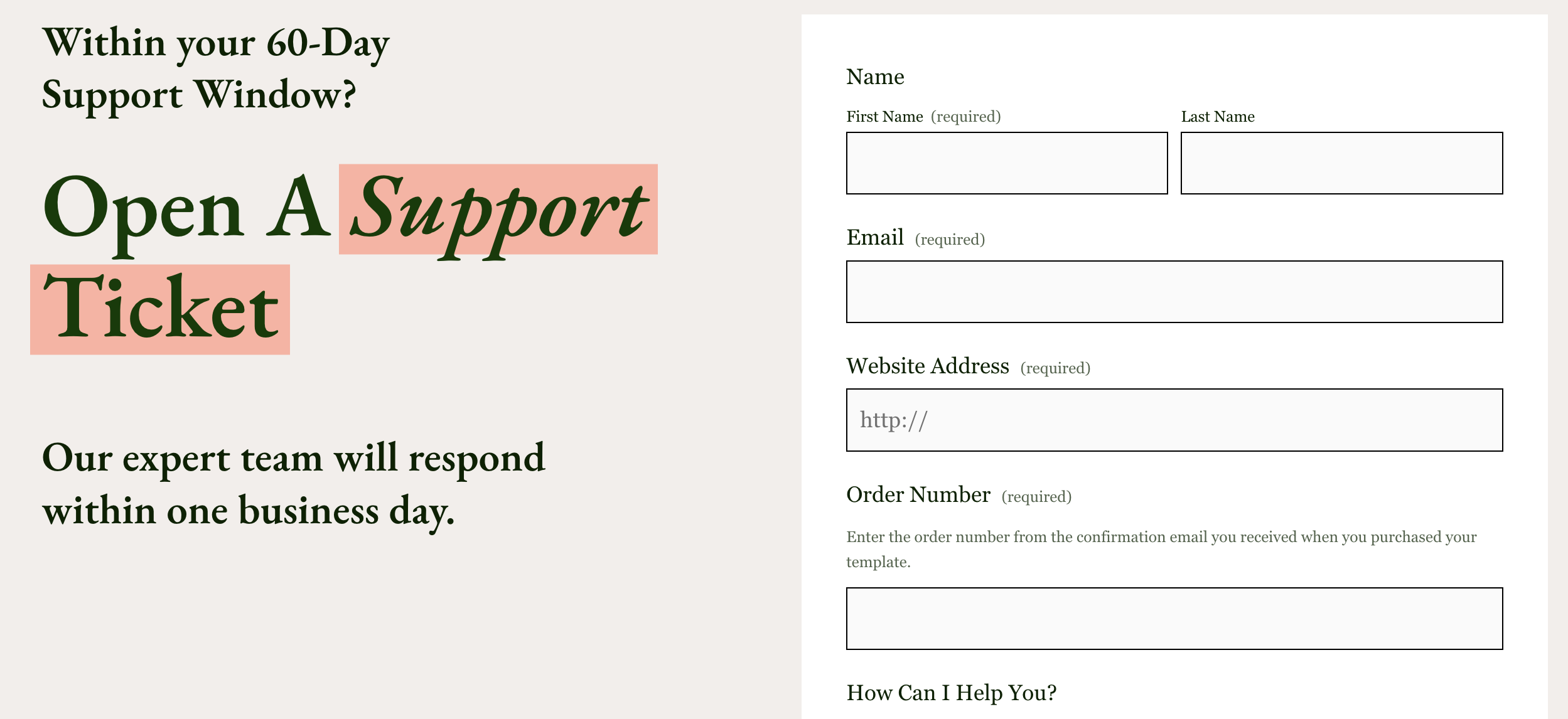
Run into an issue and can’t get an answer from Squarespace’s support documentation? A human being (me!) is just a message away.
What Else Do I Have to Buy?
Good news: not much. Here's the short list.
A domain name
This is your web address (like launchitandloveit.com). Pricing varies depending on the name and ending (.com, .co, .coach, and so on). If you're on an annual Squarespace plan, you may be able to get your first year free.
A Squarespace plan
You'll need a paid plan to publish your site. Check Squarespace's pricing page for current options, and the course for which plan your template needs.
Scheduler or email marketing software (optional)
Most coaches, consultants, and speakers want a way for people to book calls and a way to stay in touch via email. You've got options for both, and Squarespace offers its own:
Acuity Scheduling for booking calls. (You may have heard it called Squarespace Scheduling — Squarespace has since moved it back to the Acuity name.)
Squarespace Email Campaigns for newsletters and automated emails.
These are paid add-ons, but they're optional. If you already use something like Calendly or ConvertKit, you can keep using it and connect it to your site.
For a full breakdown of what everything costs, check out How Much Does a Squarespace Website Really Cost?
Still Have Questions?
I'm happy to answer them. Get in touch here and let's talk about whether a template is the right fit for you.
And if you're ready to get started, browse our template kits. Your new website is closer than you think.

Hi, I'm David!
I've poured my 20+ years professional web design experience into delivering Website Intensives and Website Template Kits designed to help thought leaders (coaches, consultants, professional speakers) get the website they've always wished they had.